The Squarespace features most established businesses aren't using (but should be)
Most businesses are sitting on tools they don't know exist.
Not because they're behind. But because lately Squarespace ships updates faster than anyone running a business has time to track, and nobody sends an email that says "here's what changed and why it matters to you."
That's the gap this post is for.
If you built your site a year or two ago and haven't been back into the settings since, there's a good chance you're working around problems that Squarespace has now solved. Things that make updating and maintaining your website easier.
Here are five features worth knowing about, what each one replaces, and where to find it.
#1. Anchor links
The fix for a page that's grown too long to navigate
If your homepage or services page has grown long, anchor links are the solution to your problem. Anchor links let you build navigation that jumps straight to a section on the same page. In the past you had to create them by way of a workaround - random hidden code blocks that serve as the anchor link. They were painful and cumbersome to create. But now, Squarespace has this built in as a native feature - code blocks be gone!
You can set them up on a button, a nav link, or inline text, and the visitor lands exactly where you mean them to.
This is the fix for long FAQ pages, detailed services pages, and one-page sites where scrolling has become the only way to find anything. If a page on your site is hard to navigate, this is worth trying before you touch the layout.
#2. Password protected pages
The feature that lets you be selective without building a wall
If you've ever needed to share something with one client or one type of enquiry - and only that person - this is worth knowing about.
Squarespace lets you password-protect any individual page on your site. No plugin, no member login system, no separate portal to maintain. You set a password, share it with the right person, and that page stays invisible to everyone else browsing your site.
It's a quieter tool than a full member area, and that's exactly why it's useful. A welcome guide for a new client. A pricing page reserved for people who've already had a discovery call. A behind-the-scenes look at a project still in progress.
One page, one password, nothing else to manage.
#3. Saved sections
The setting that saves you from rebuilding the same section
If you run more than one page with a similar layout, the section you've rebuilt three times now has a name: Saved Sections.
Saved Sections let you build a layout once and reuse it across your site, whether that's a testimonial block, a CTA strip, or a services summary. Update it in one place and it updates everywhere you've used it.
This matters most for multi-offer businesses adding pages over time. Every new service page stops being a rebuild and starts being a duplicate-and-edit.
#4. SEO + AIO
The tool that improves your SEO without you writing a tag
If meta descriptions and alt text are the thing you keep meaning to get to, Squarespace has built a panel that does most of the legwork.
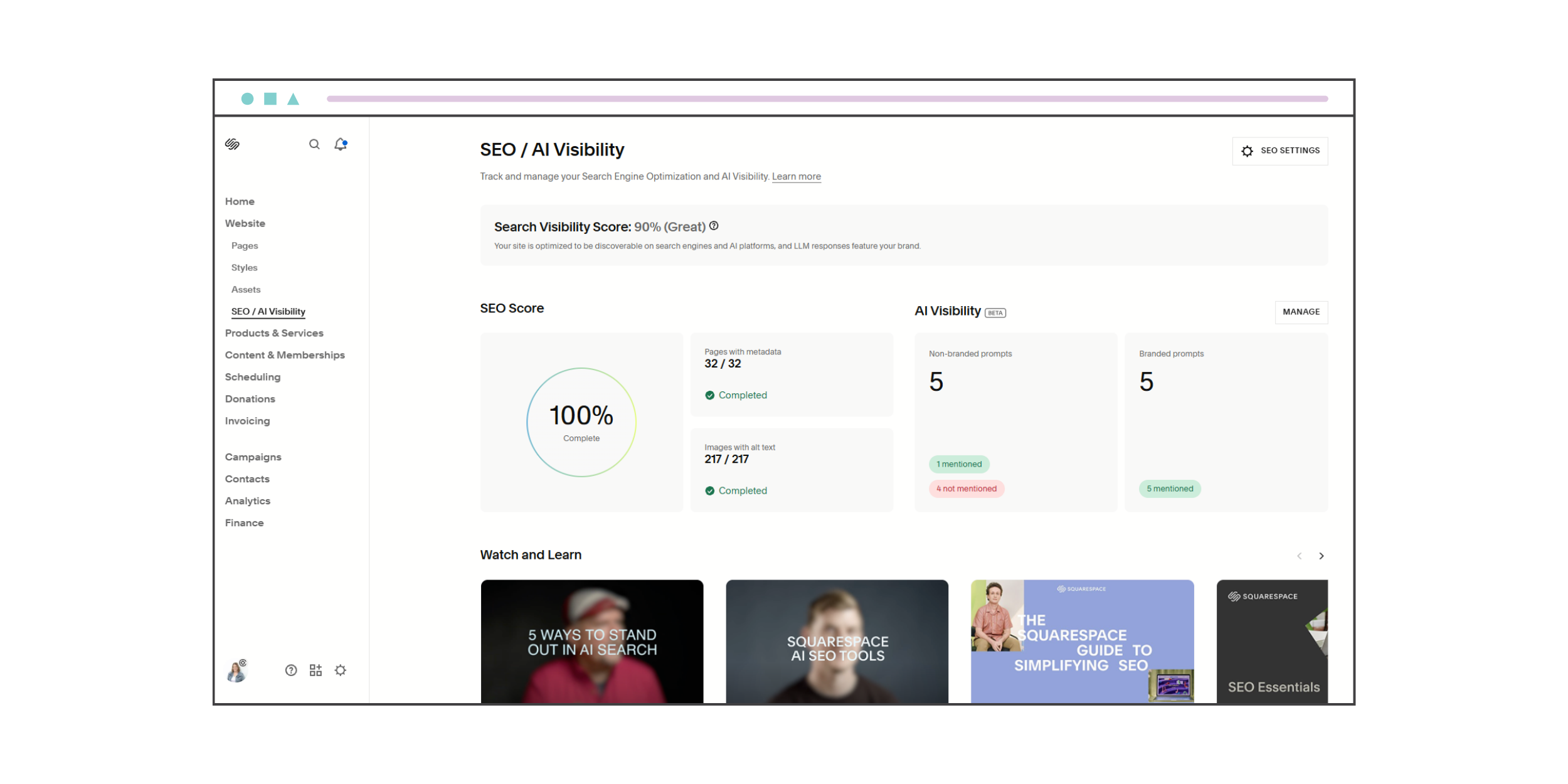
Under Website, the SEO and AIO section shows an SEO score and flags exactly which pages and images are missing metadata or alt text. Beacon AI, Squarespace's built-in assistant, can generate suggested copy for both, which you review and approve rather than publish blind.
It's worth being clear on what it actually measures. It tells you how much of your SEO has been completed, not how effective it is. But completeness is most of what gets missed when you're running a business solo, and it's increasingly tied to how AI tools surface your site when someone searches.
If you want to go further than Squarespace’s native panel, SEOSpace is the plugin I run on my own site and recommend to clients. It picks up what Squarespace doesn't cover natively - broken link detection, redirect management, schema markup (and so much more) - without needing a developer to set it up.
This is an affiliate link. If you sign up through it, I may earn a small commission at no extra cost to you.
#5. Squarespace search
The native function that might replace a plugin you're still paying for
If you added a third-party search tool because the built-in version felt limited, it's worth checking again.
Squarespace's native search is significantly faster now and indexes content inside page sections and store categories, not just page titles. That's the gap that used to send people looking for paid search plugins in the first place.
This is a five-minute check that might let you drop a subscription you no longer need.
None of this replaces strategy
These features fix friction. They don't replace the thinking behind why your site is structured the way it is, who it needs to speak to, or what it's actually meant to do.
But if the platform has quietly built a fix for something you've been working around, that's worth ten minutes of your time. It's worth checking which ones are sitting unused on your site.
If you want a second pair of eyes on which of these actually apply to your site, that's exactly what a Hit List Hour is for. One hour, on screen, working through your specific setup together. If you'd rather this kind of thing was handled quietly each month without you having to think about it, that's what The Sidekick is for.
Frequently asked questions
-
Most of what's covered here is available on 7.1. If you're still on 7.0, features like Saved Sections and the newer SEO panel won't be available, and that's worth a conversation before you invest more time into your current setup.
-
It's a starting point, not a strategy. The AI fills the gaps quickly, but the wording still needs a human check for accuracy and brand voice before it goes live.
-
Some newer additions, like Block Animations and Mobile Overrides, are currently in beta for Circle Gold and Platinum Partners only. Everything covered in this post is available on standard Business and Commerce plans.
-
That depends on what your site already does and where the friction actually is. A Hit List Hour is built for exactly this, working through your specific setup in real time rather than guessing from a checklist.